

Help Center / Running your jobs
How Foreman runs your job, from lead to warranty
Every job in Foreman moves through 8 stages, from the first call to the warranty walk. Foreman keeps track of where each job is, shows you what's left in each stage, and does the follow-up work for you: nudging subs, chasing paperwork and signatures, reminding you before dates. You approve everything that matters. Watch the walkthrough first, then use the sections below as a reference.
The 8 stages of a jobSee where a job standsWhat needs youSend bid packages to your subsTrack every bid, then award itWhat your subs seePaperwork on autopilot: insurance, W-9s, licenses and new-hire formsAll your jobs on one boardFinish the job: punch list, final inspection, closeout package, final invoiceAfter the keys: warranty, callbacks, review, archiveConnect your email and phone so Foreman can do the follow-up
Watch first
Watch: Foreman runs the whole job
A 13-minute tour in 13 chapters. Tap any chapter to jump to it; the next one starts on its own.
The big ideaChapter 1 of 13 · 12:47 in all
Running your jobs
The 8 stages of a job
Each job has one stage at a time. You set it and move it. Foreman also suggests moving it when it sees proof, like a signed proposal, but it never moves a job on its own.
- Lead: the work comes in by email, call, text or your website.
- Bid or pass?: decide if it's worth bidding.
- Estimate & bid: take off the plans, build the budget, get prices from your subs, send the proposal.
- Award & contract: the client signs, the deposit comes in, you set a start date.
- Preconstruction: lock in your subs, pull permits, order long-lead materials, set the schedule.
- Construction: daily logs, inspections, change orders, and billing as you go.
- Closeout: punch list, final inspection, final invoice and retainage.
- Warranty: the 11-month walkthrough, callbacks, and asking for a review.
Running your jobs
See where a job stands
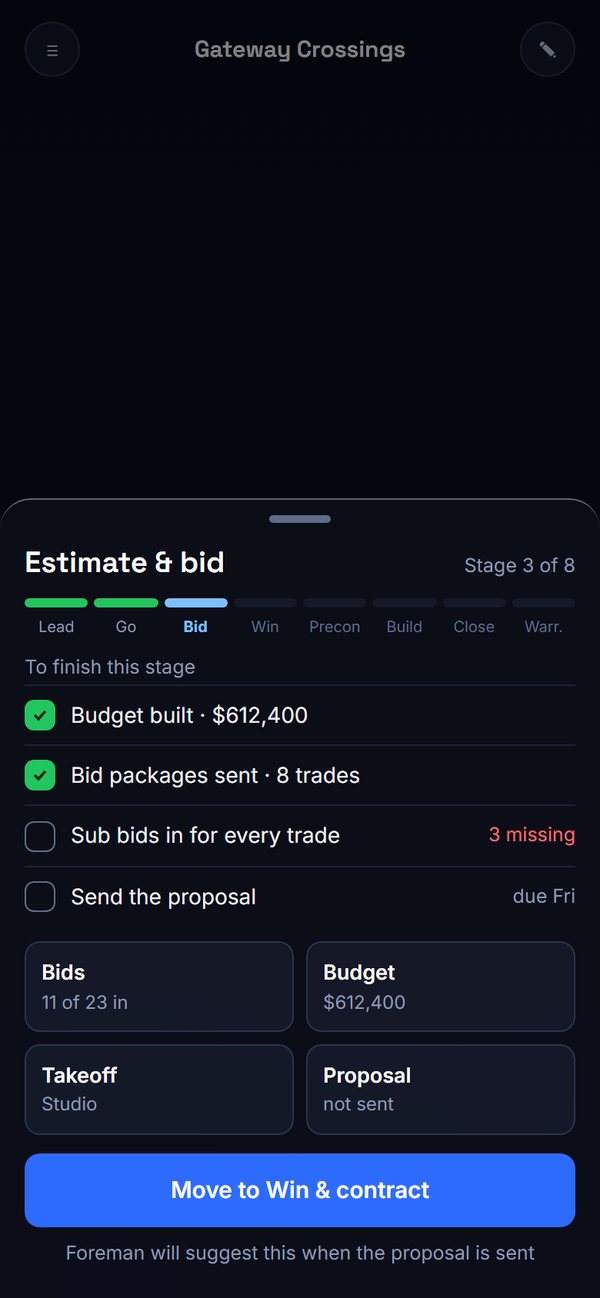
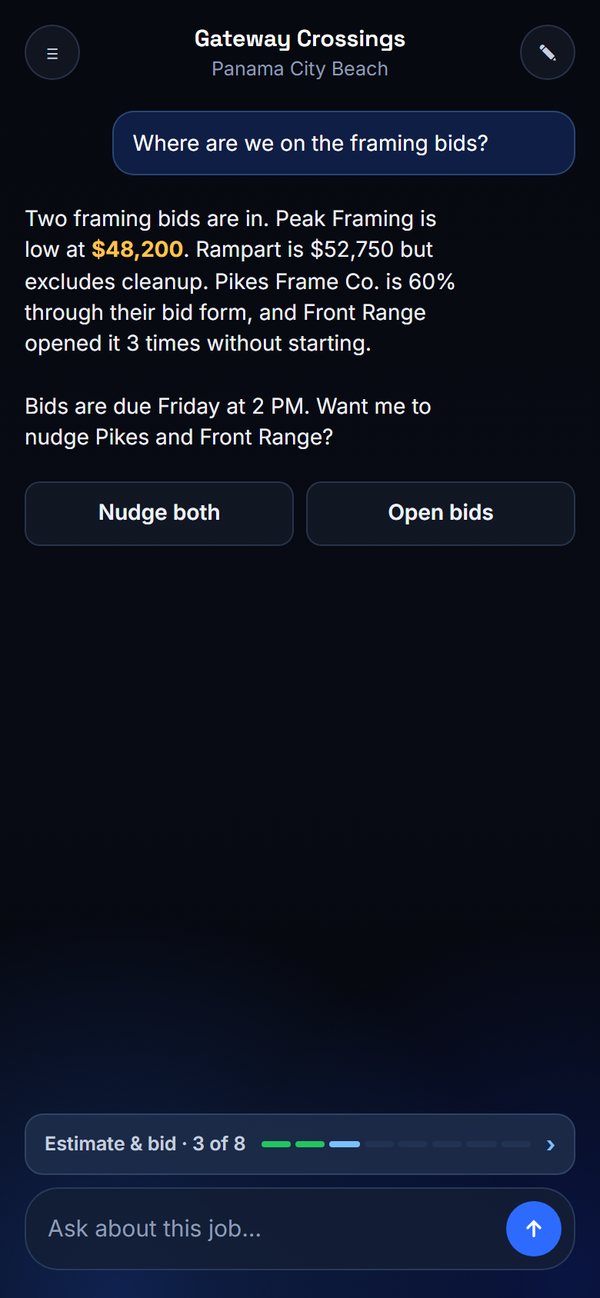
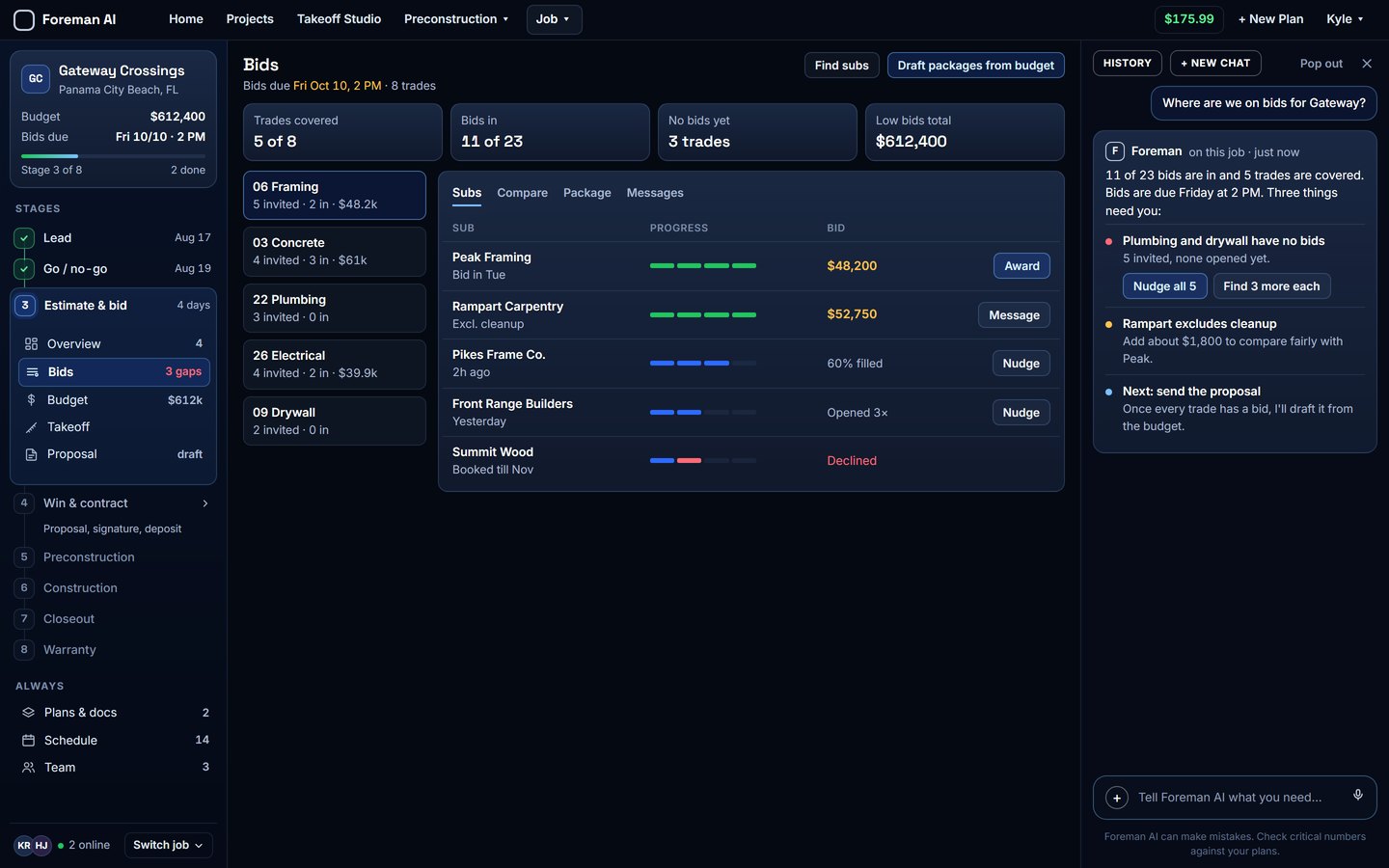
On your phone, the stage bar sits right above the message box on every job, for example "Estimate & bid · 3 of 8". On a computer, the stages run down the left side of the job, in order.
- Open a job.
- Tap the stage bar (phone) or look at the left side (computer).
- Finished stages have a green check and a date. The current stage is highlighted and shows its tools.
- When a stage is done, tap Move to the next stage, or say "move this job to Award & contract".
Where is this job at?What's left before I can send the proposal?Move Gateway Crossings to Award & contract.Running your jobs
What needs you
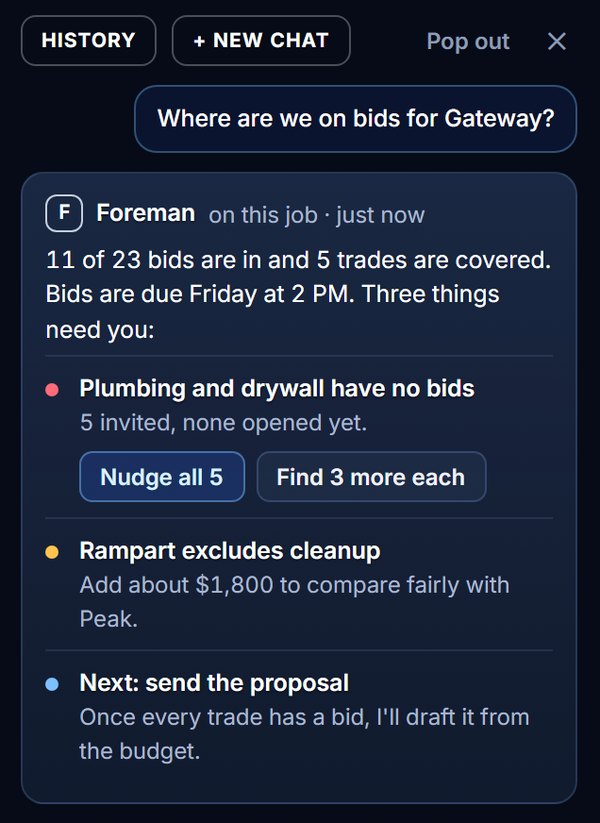
Foreman watches every job and puts what needs you in one list on Home: a lead with no reply, a trade with no bids before bid day, a proposal opened three times but not signed, unpaid retainage. Each item opens straight into the right job, with the next move one tap away.
Inside a job, Foreman shows the same things for that job in the chat on the right (computer) or as cards in the chat (phone), with buttons like Nudge all or Find more subs.
What needs me today?Catch me up on Gateway Crossings.Running your jobs
Send bid packages to your subs
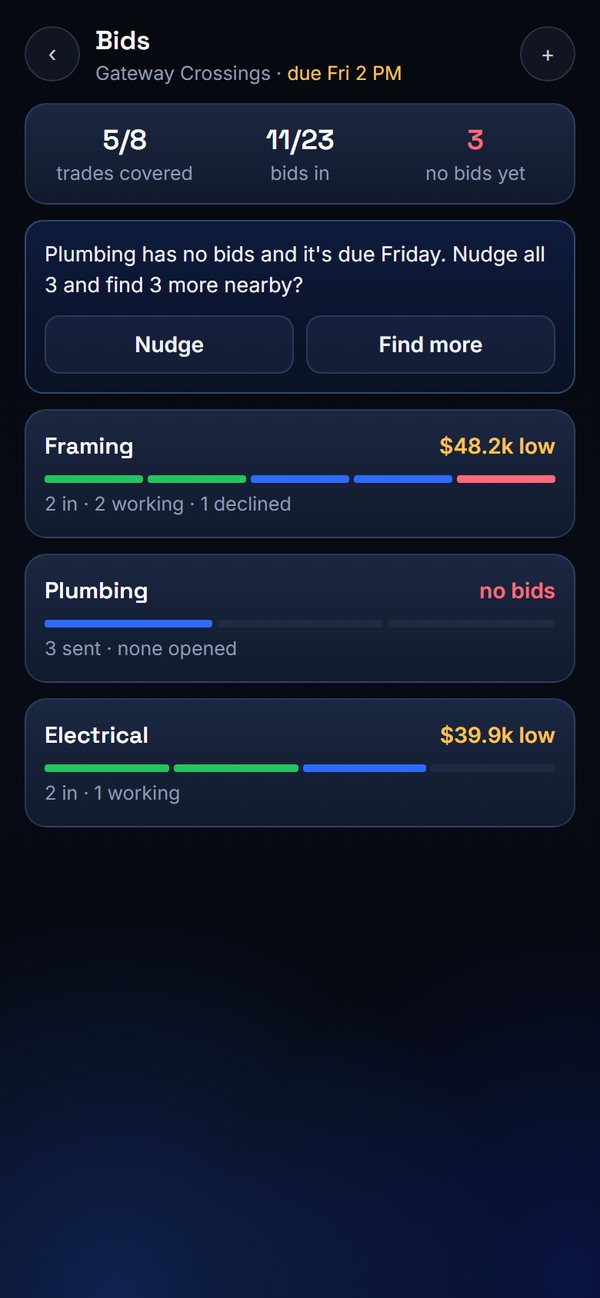
While you build your estimate, Foreman helps you get prices from your subs, one bid package per trade.
- Open the job and go to Bids.
- Tap Draft packages from budget. Foreman makes one package per trade with the scope, what's excluded, the right plan sheets, the bid due date and the line items to price.
- Check each package and change anything you want.
- Pick subs for each trade from your sub book, from subs on Foreman, or tap Find subs to search nearby.
- Tap Send. The invites go out from your own email address.
Running your jobs
Track every bid, then award it
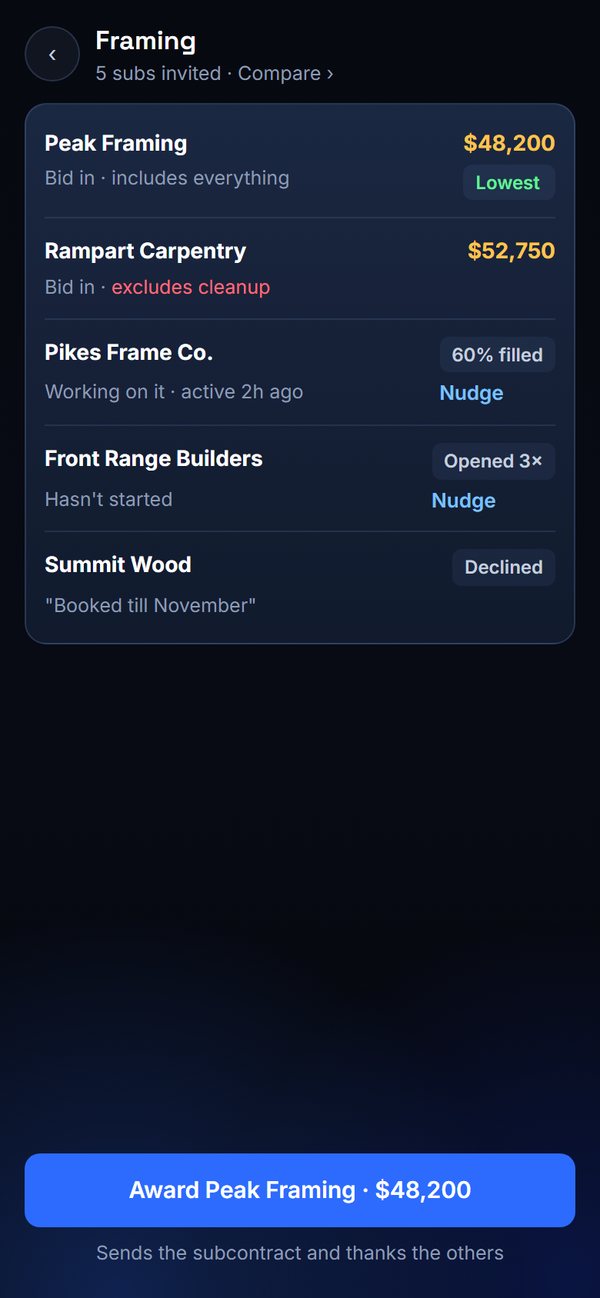
Each sub moves through four steps you can see at a glance: sent, opened, filling it out, and bid in. If a sub can't bid, they tell you why with one tap, so you're not left guessing.
- Tap a trade to see each sub's progress, their number and when they were last active.
- Tap Nudge on anyone who opened it but hasn't bid. Foreman can also nudge them for you before the due date.
- Open Compare to see bids side by side. Foreman points out what each sub left out, for example "excludes cleanup", so you compare fairly.
- Tap Award. Foreman sends the subcontract, thanks the other subs, and puts the number in your estimate.
Who hasn't bid on plumbing yet?Nudge everyone who opened the framing package.Award framing to Peak Framing.Running your jobs
What your subs see
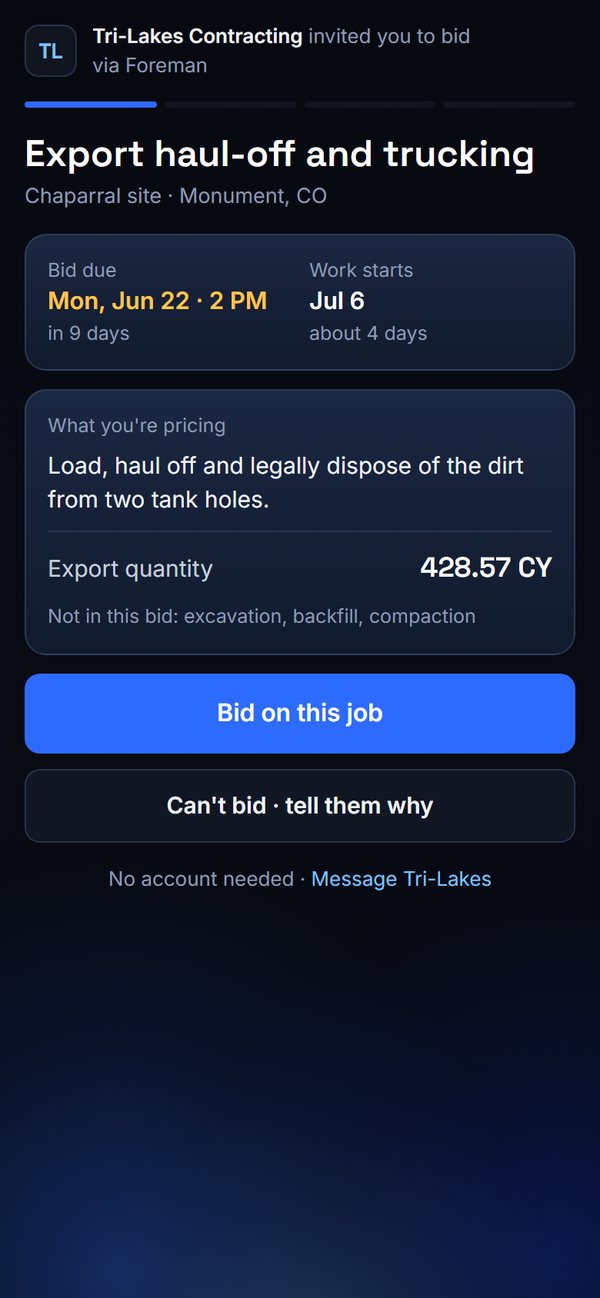
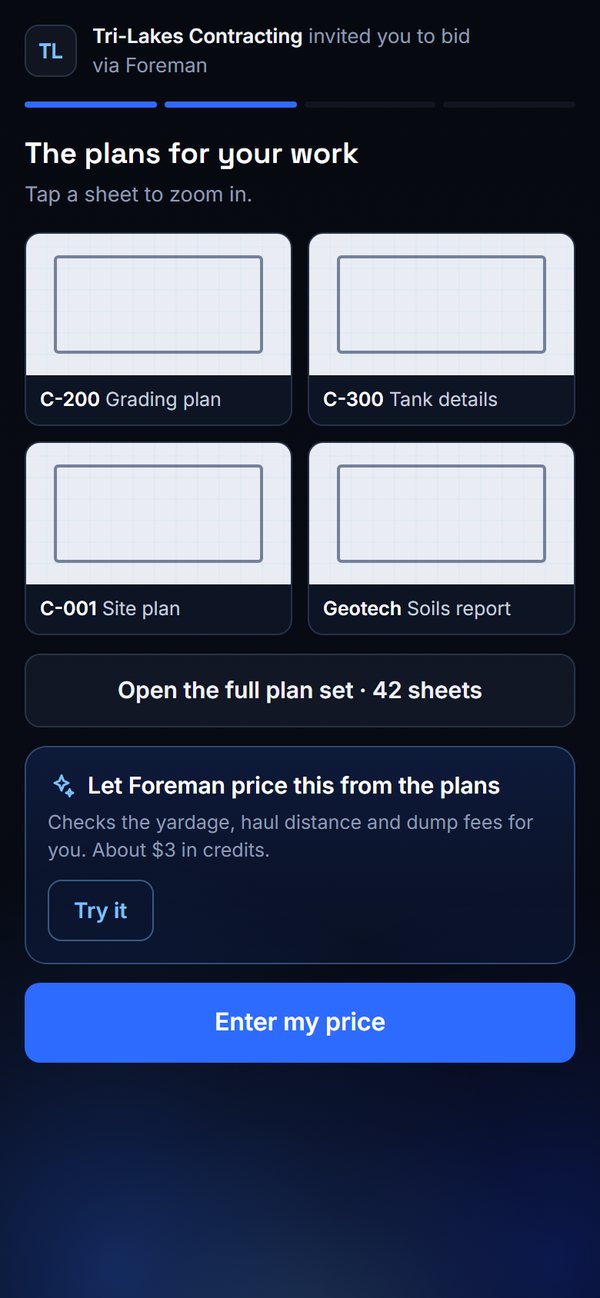
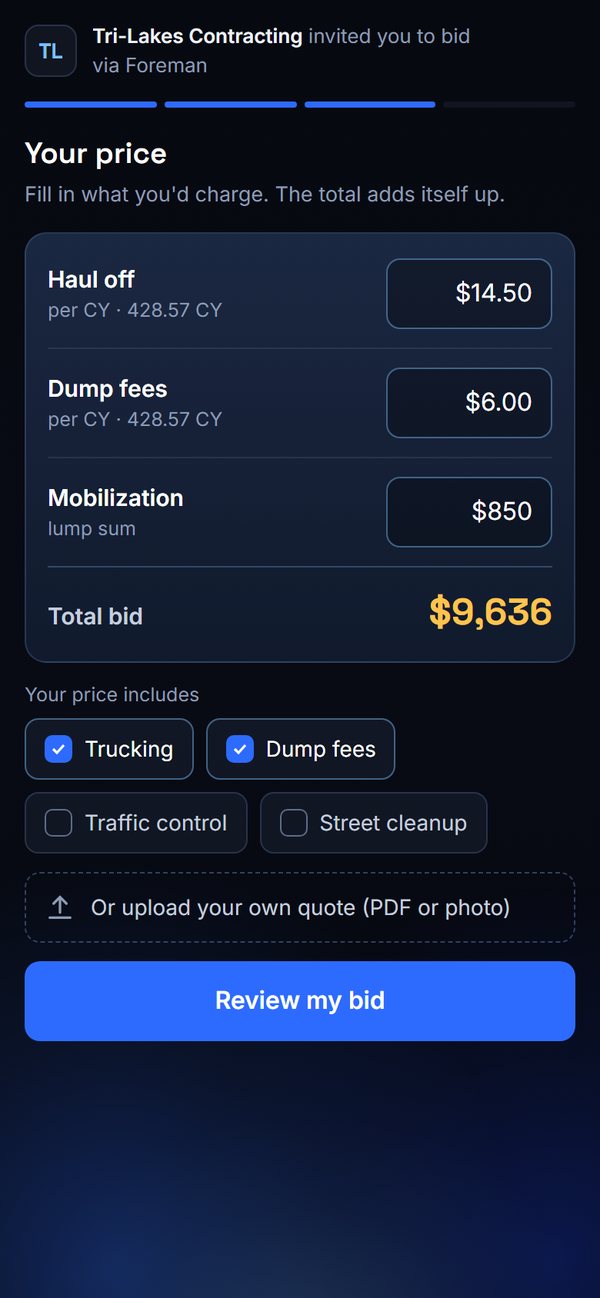
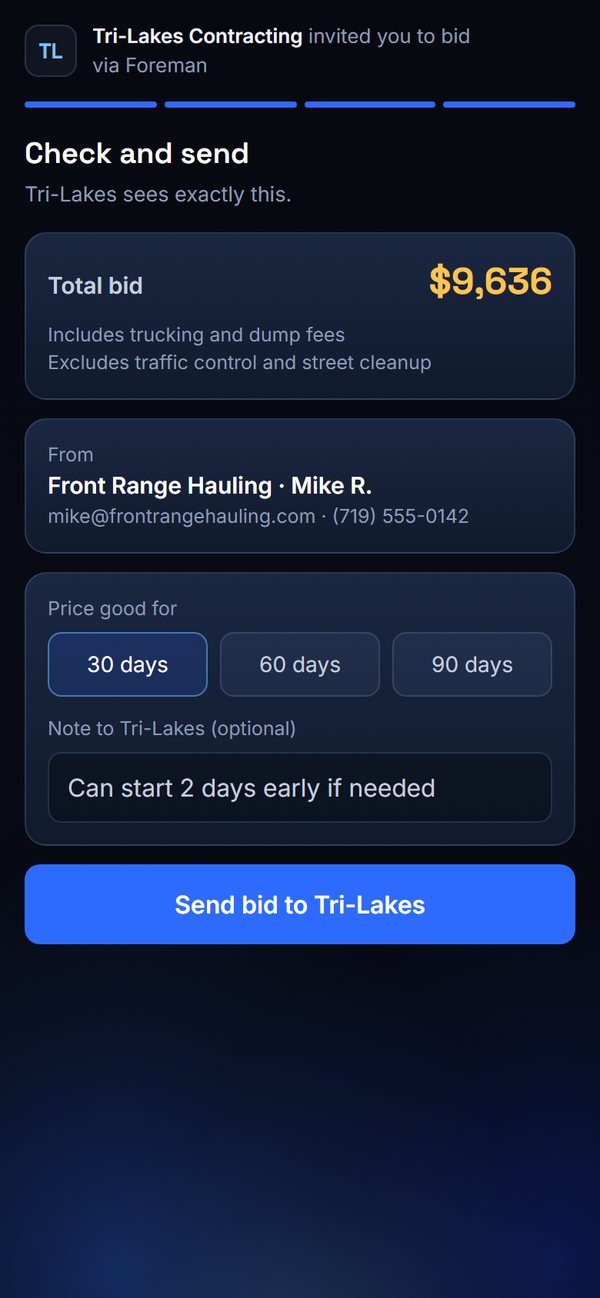
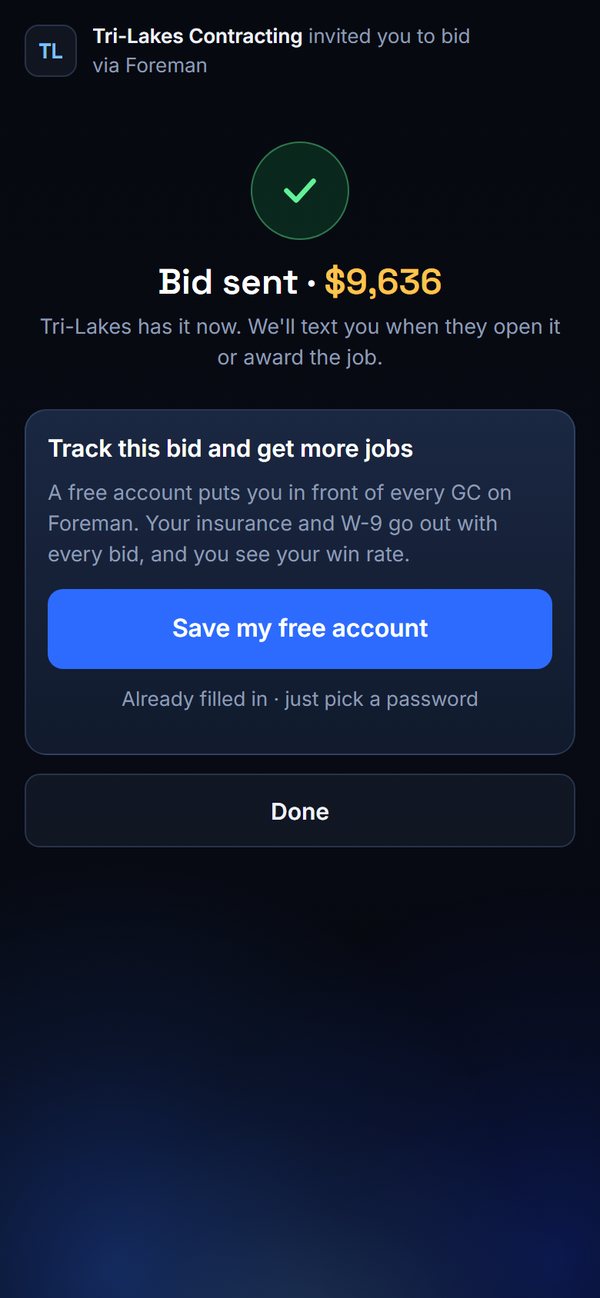
Your subs don't need a Foreman account, a password or an app to bid. The link in their email opens a simple page: the job, the plans for their trade, a price form, and Send. After they send, they can save a free account to track their bids and get invites from other contractors.
- The invite: who it's from, what to price, the bid due date and the start date.
- The plans: just the sheets for their trade, with the full set one tap away.
- The price form: your line items. The total adds itself up, and they check what's included.
- Review and send: they see exactly what you'll see.
- They can also upload their own quote, or say they can't bid and why.
Running your jobs
Paperwork on autopilot: insurance, W-9s, licenses and new-hire forms
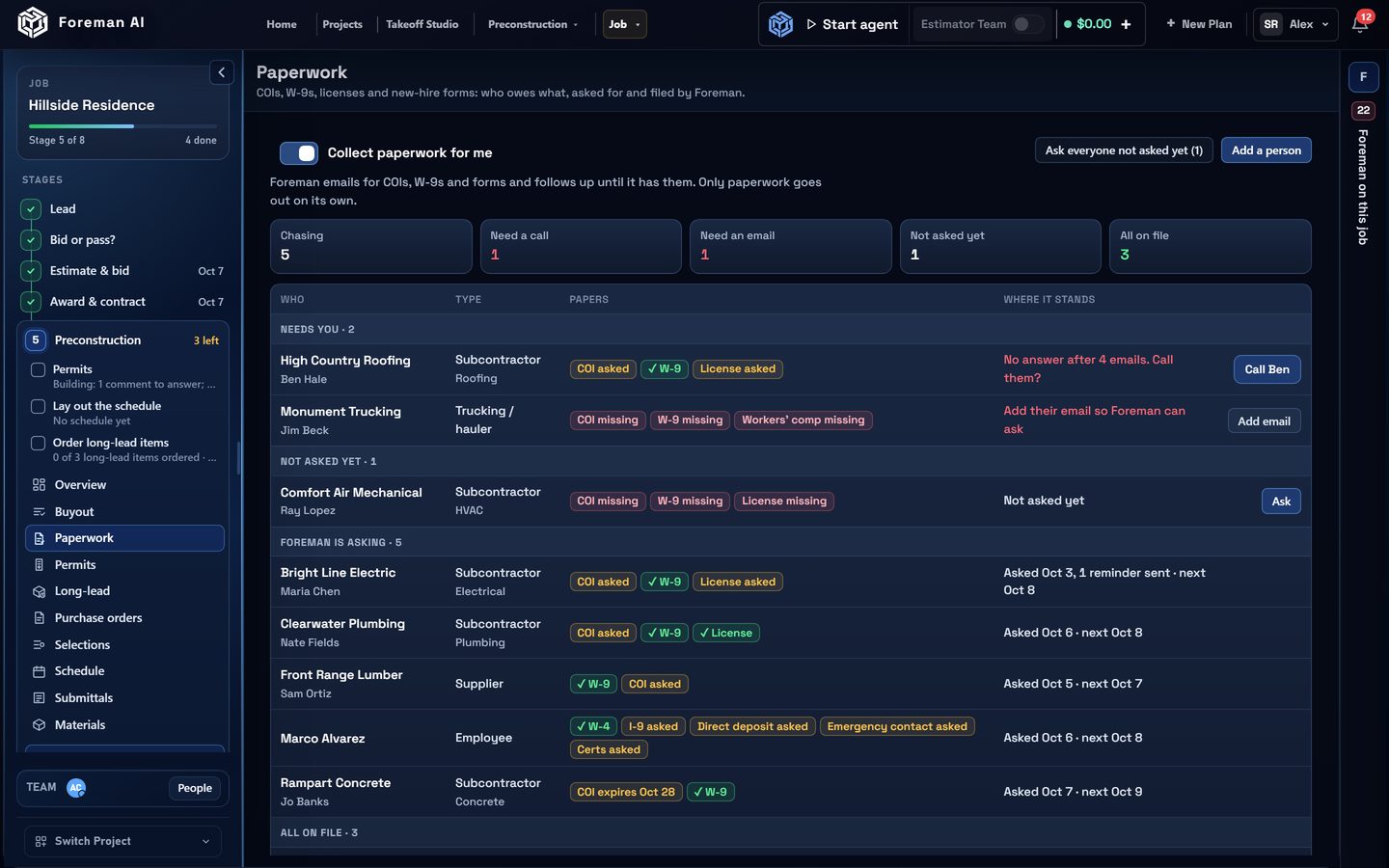
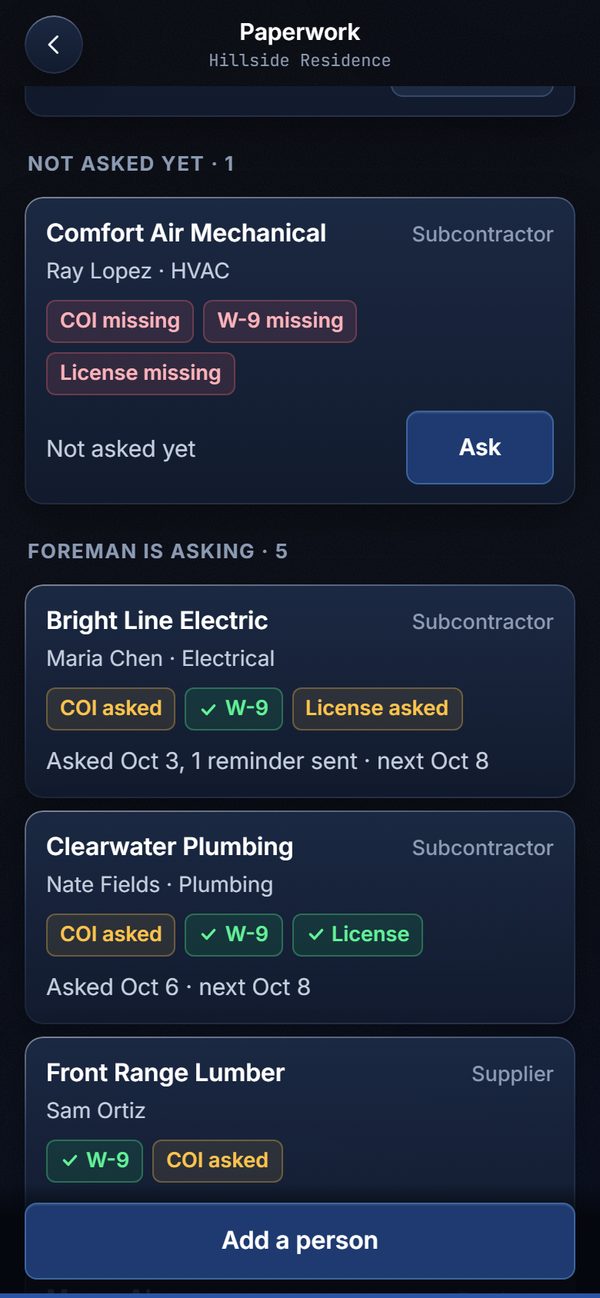
Every sub, supplier, trucker and new hire owes you paperwork. Foreman works out who owes what, asks for it from your own email with a no-login upload link, reminds them, reads what comes back, and files it to the job. You only hear about it when someone stops answering.
It starts on its own when you award a bid, mark a purchase order sent, or add a sub on Buyout. Open Paperwork in the Preconstruction stage to see everyone and what each one still owes.
- Reminders go out on day 2, 5 and 9. After four emails with no answer, Foreman stops and puts a Call them card in what needs you.
- When a reply comes in, Foreman reads each file, tells a COI from a W-9, files it to the job and checks it off.
- It watches insurance dates and asks for the new certificate 30 days before one runs out.
- Papers belong to the person, not the job, so a sub's COI on file covers them on every job.
- You pick how much Foreman does with the Autopilot setting at the top of Paperwork: Off (Foreman keeps track, you do the asking), Ask me first (every ask and reminder is lined up for you to send), or Autopilot (they go out from your email on their own). Paperwork is the only thing Foreman ever sends without your tap.
SubcontractorsCertificate of insurance (COI) and a W-9, plus their license in licensed trades like electrical, plumbing, HVAC and roofing.
SuppliersA W-9, and insurance for anything they deliver to the site.
Truckers and haulersInsurance, a W-9 and workers' comp.
1099 contractorsA W-9 and insurance.
New hiresW-4, I-9, direct deposit, emergency contact and certifications.
Who still owes me insurance on Hillside Residence?Ask Monument Trucking for their COI and workers' comp.Stop chasing Bright Line Electric.Running your jobs
All your jobs on one board
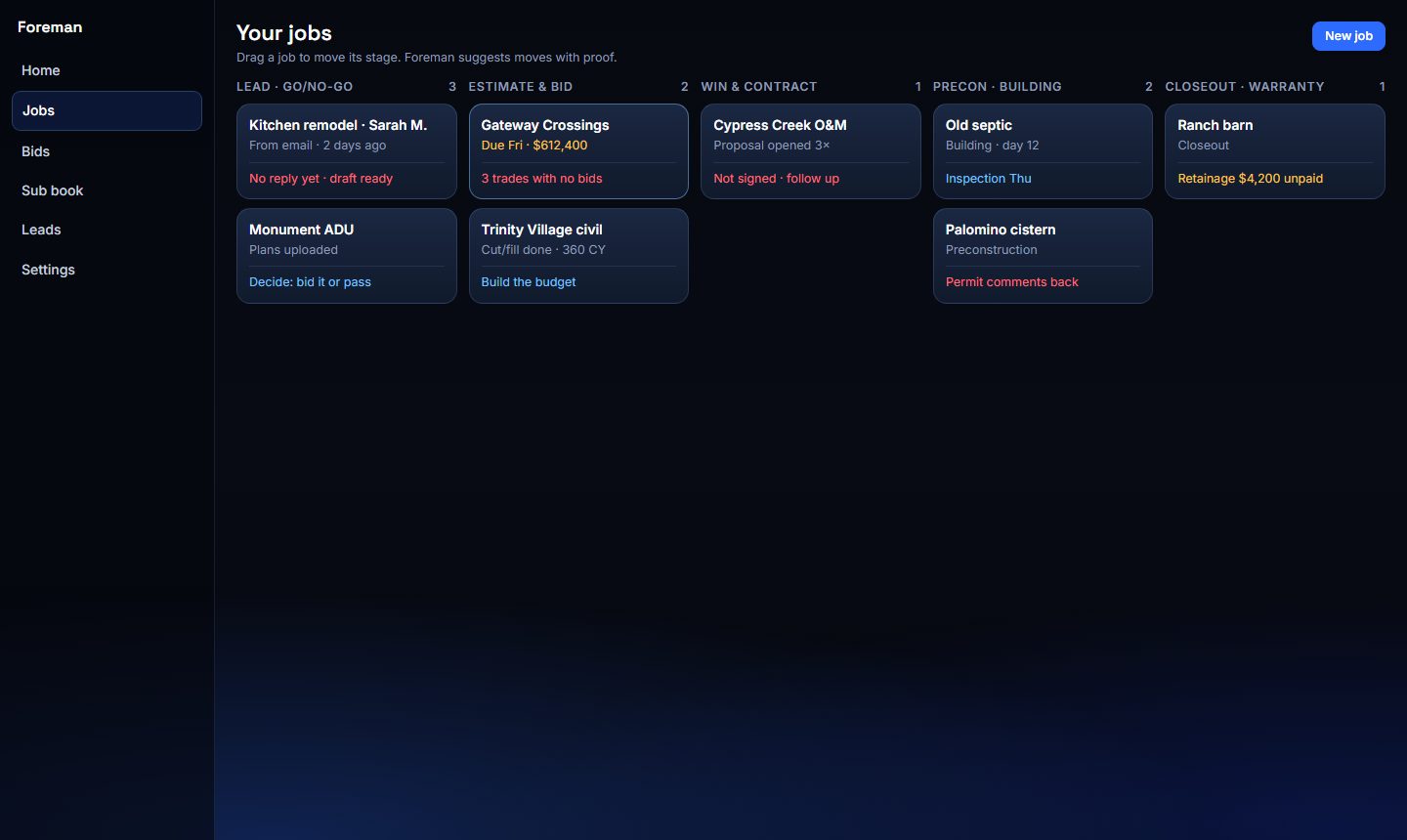
On a computer, the Projects tab shows every job on a board by stage. Each card shows the job's next move, and anything that needs you is in red. Drag a job to move its stage.
Running your jobs
Finish the job: punch list, final inspection, closeout package, final invoice
When a job reaches Closeout, its tools are in the stage sheet on your phone and in the stage menu in Company Cloud. Each one ticks its step on the checklist when it's done.
- Punch list: tap Add punch item, take a photo, say what's wrong (type it or tap the mic), pick who's fixing it (your crew or one of the job's subs) and a due date. Items go open, fixed, verified.
- Send a sub their items: Foreman writes the text or email with their open items; you check it and tap Send.
- Print the punch list: Punch list PDF, filtered by sub or status.
- Final inspection: record the date, the result and the CO number, and add the certificate of occupancy. A pass starts the warranty.
- Closeout package: pick the warranties, manuals, as-builts, final lien waiver and CO from the job's files, put them in order, and Foreman makes one PDF with a contents page and a link for the owner.
- Final invoice: the contract plus signed change orders, less what you've billed. Write it, check it, and send it with its PDF and a tracked link.
Running your jobs
After the keys: warranty, callbacks, review, archive
In the Warranty stage, Foreman keeps the warranty dates and reminds you when the 11-month walkthrough is coming up, with the scheduling email already written.
- Warranty: starts at the final inspection (or the date you set), one year by default; change the term per job.
- Callbacks: send the owner their request link (no login needed). What they send, photos too, shows up in Callbacks and in what needs you. You can log a call yourself too.
- Review ask: paste your Google review link once. Foreman writes the ask for a review and referrals; you tap Send.
- Archive: takes a finished job off your active lists and the board. Nothing is deleted; restore it any time from Archived on the jobs board or the Archive screen.
Running your jobs
Connect your email and phone so Foreman can do the follow-up
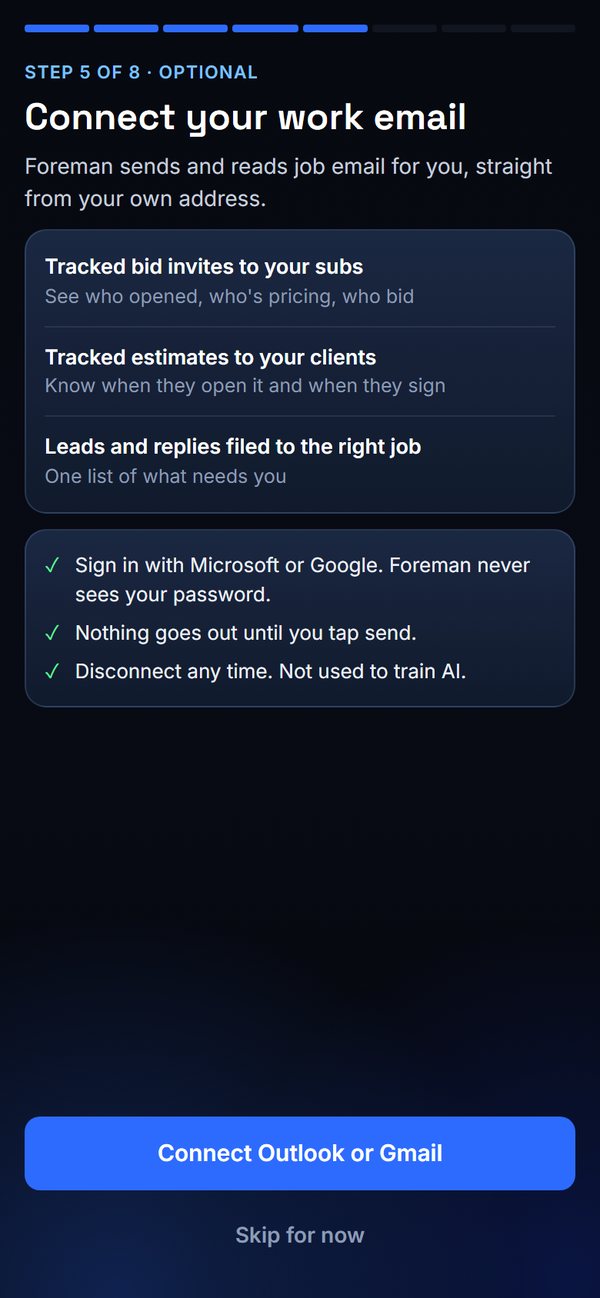
Connecting your work email is what lets Foreman send and track things for you, straight from your own address. Connecting your business phone (Quo) lets it read your texts and transcribe your calls, and file both to the right job. With both connected, Foreman can run most of the follow-up on a job by itself, and you approve what matters.
- Tracked bid invites to your subs: see who opened, who's pricing, who bid.
- Tracked estimates to your clients: know when they open it and when they sign.
- Leads and replies filed to the right job, in one list of what needs you.
- You sign in with Microsoft or Google, and Foreman never sees your password.
- On Autopilot, paperwork requests and reminders go out on their own; switch to Ask me first or Off any time. Everything else waits for your tap.
- Calls and texts from Quo show up in the job's conversation, with a written summary of each call.
- Disconnect any time. Your email isn't used to train AI.
Keep learning